Document Actions
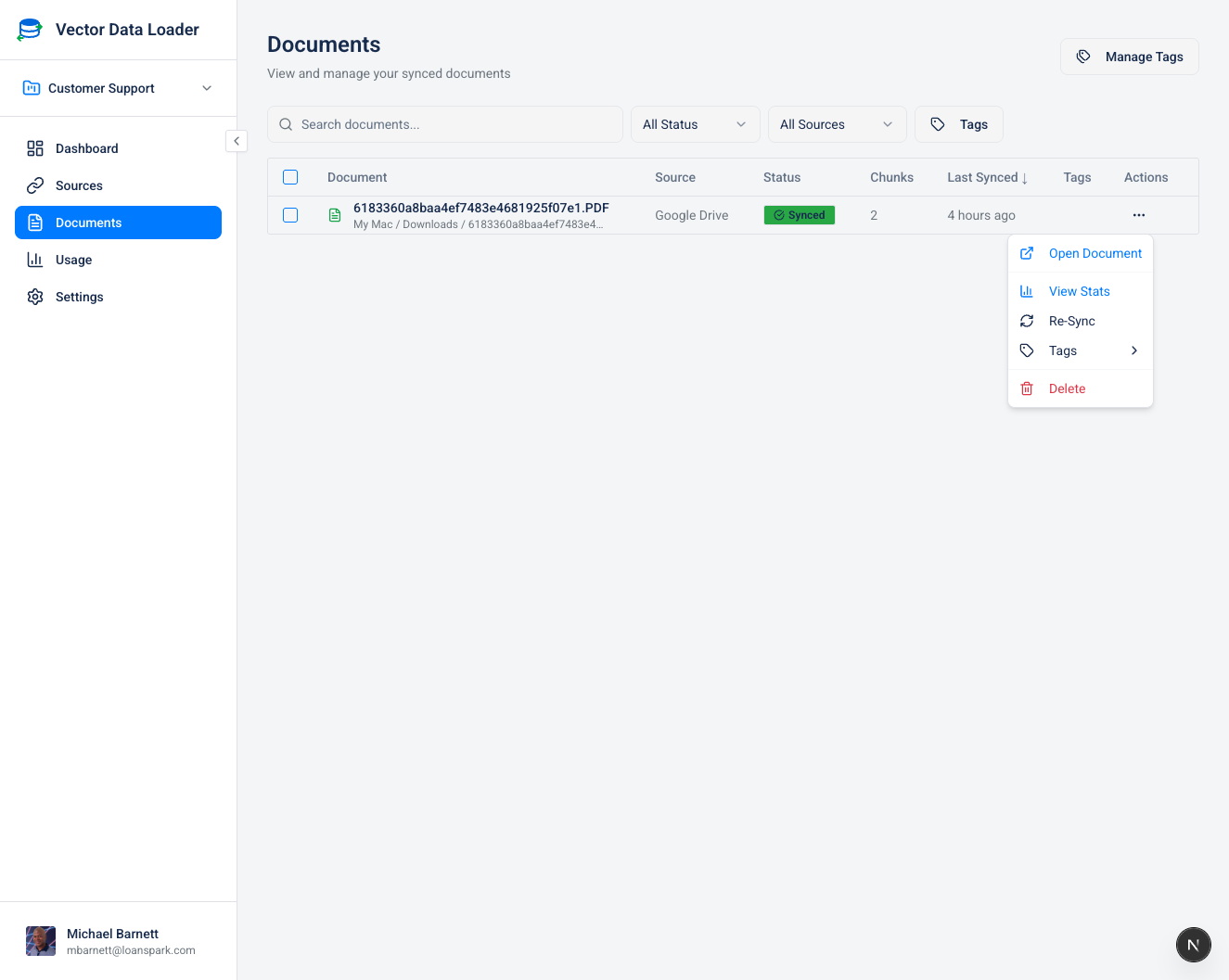
Click the three-dot menu (⋮) on any document row to access:
| Action | Description |
|---|---|
| Open Document | Navigate to the original source document |
| View Stats | See detailed document statistics |
| Re-Sync | Force a fresh sync of this document |
| Tags | Manage tags assigned to this document |
| Delete | Remove the document and its vector chunks |
Understanding Document Re-Sync
The Re-Sync action reprocesses a document from scratch. When you resync a document, the system:
- Deletes existing chunks - Removes all vector embeddings for that document from your vector store
- Re-fetches content - For cloud sources (Confluence, Drive), fetches the latest content from the source
- Re-chunks the content - Splits the document using your current chunking settings
- Re-embeds all chunks - Generates new vector embeddings using your current embedding model
- Stores new vectors - Saves the fresh embeddings to your vector store
When to Re-Sync Documents
| Scenario | Why Resync Helps |
|---|---|
| Changed embedding model | Switched from text-embedding-ada-002 to text-embedding-3-small - old embeddings are incompatible with new ones |
| Changed embedding provider | Moved from OpenAI to Cohere - embeddings have different dimensions and can't be mixed |
| Updated chunking settings | Changed chunk size from 512 to 1024 tokens - existing chunks don't reflect new settings |
| Source document changed | Someone updated the Confluence page or Google Doc - your vectors contain stale content |
| Previous sync failed | Document shows "Error" status - resync after fixing your API key or config |
| Changed vector store | Switched from Supabase to Pinecone - need to populate the new store |
If you change your embedding model or provider, you should resync all documents to ensure consistent search results. Mixing embeddings from different models produces poor search quality because each model encodes meaning differently.
Enhanced Re-Sync with Contextual Retrieval
When you click Re-Sync on a document, a dialog appears offering two sync modes:
Standard Re-Sync
The default mode that uses your current chunking settings to split and embed the document. This is fast and cost-effective for most use cases.
Enhanced with Contextual Retrieval
This advanced mode uses an LLM to generate a brief context statement (1-2 sentences) for each chunk before embedding. The context situates the chunk within the overall document, dramatically improving retrieval accuracy.
How it works:
- Document is chunked using your current settings
- For each chunk, the LLM generates a context prefix like:
"This chunk is from the Vector Data Loader documentation, specifically the 'OAuth Setup' section under 'Authentication', discussing token refresh mechanisms."
- The context is prepended to each chunk before embedding
- When you search, the enhanced embeddings better match relevant queries
Benefits
- ~49% fewer retrieval failures (based on Anthropic's research)
- Better semantic matching for out-of-context queries
- Improved relevance when document structure matters
Cost Estimate
Before processing, the dialog shows:
- Document size in tokens
- Number of chunks to process
- LLM provider and model being used
- Estimated cost (typically $0.01-0.10 for most documents)
Requirements
- LLM must be configured in Settings > LLM Model
- Uses your LLM API credits (not Vector Data Loader quota)
- Works with any configured LLM provider (OpenAI, Anthropic)
When to Use Enhanced Mode
| Scenario | Recommendation |
|---|---|
| Important documents | Use enhanced for key reference docs you search frequently |
| Long technical docs | Enhanced helps with multi-section documents |
| General content | Standard mode is usually sufficient |
| Many documents | Standard for bulk; enhanced selectively for important ones |
Contextual retrieval is most beneficial for documents where chunks might be searched out of context. For short, focused documents, standard sync is often sufficient.